/ tools / sounddeck

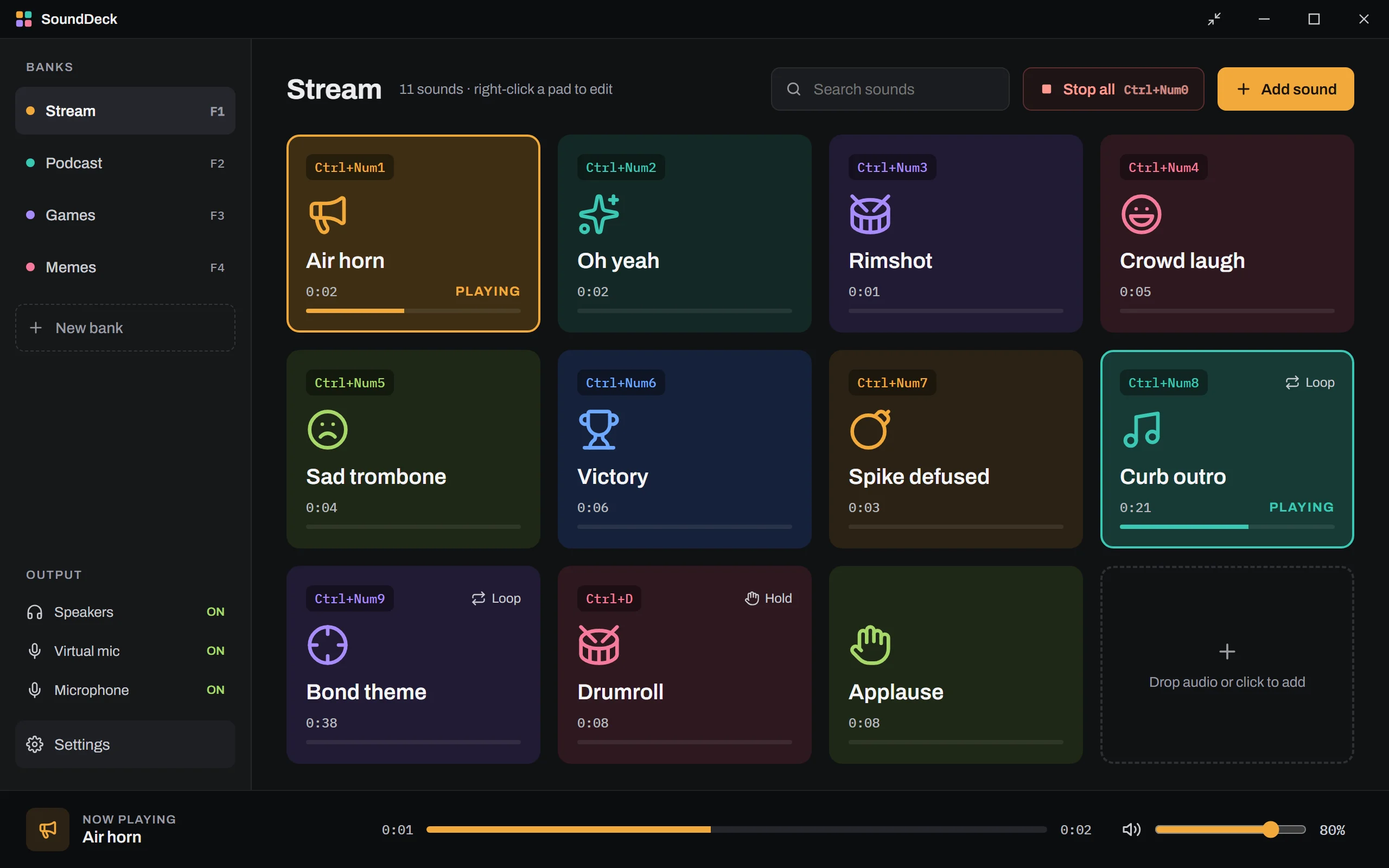
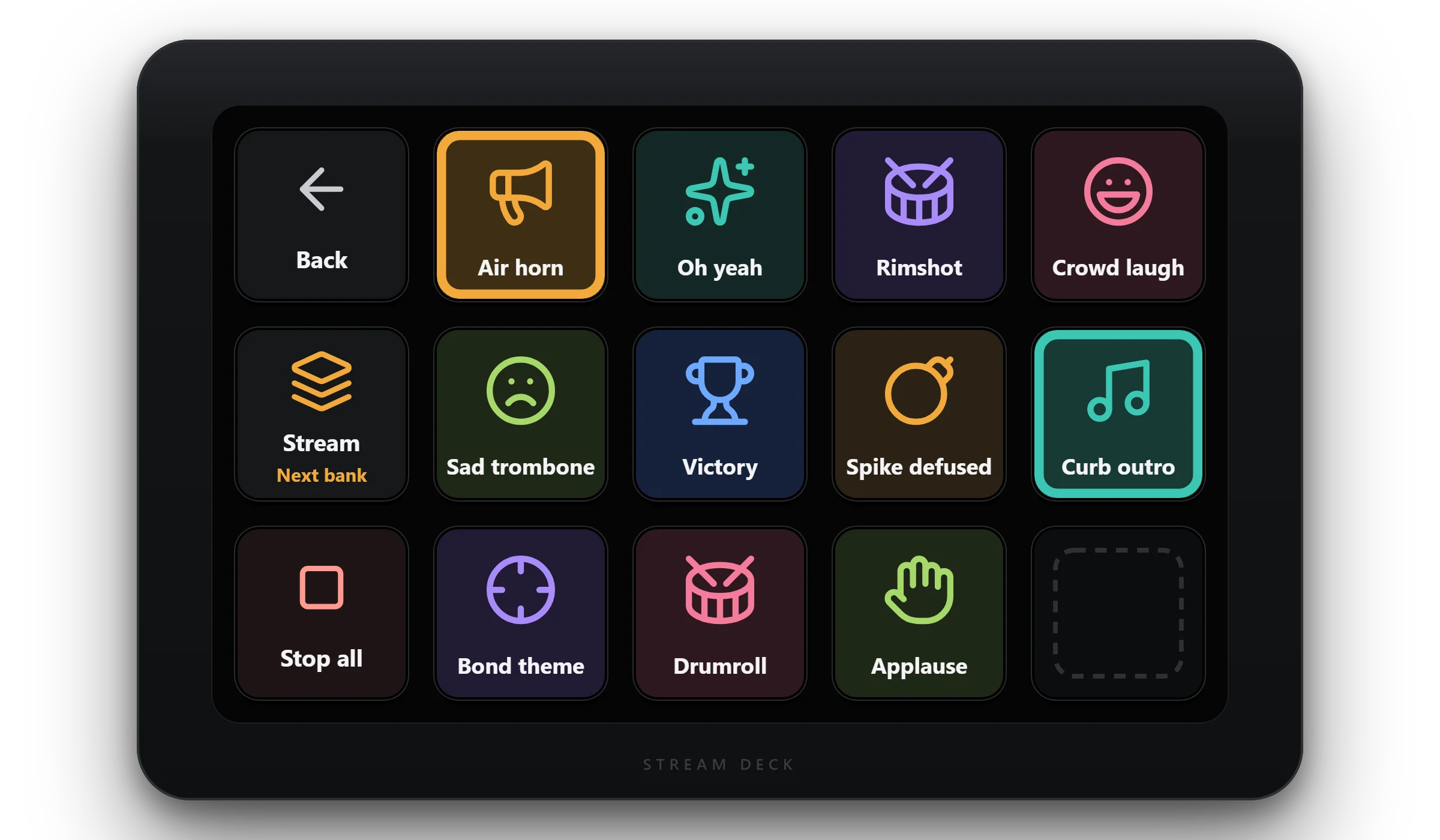
A soundboard for Windows that plays straight into your Discord, Zoom, Teams or OBS mic, mixed with your own voice. It comes with a Stream Deck plugin that works the moment it's installed: every pad shows up as a key, with the same name, color and icon.
What it looks like
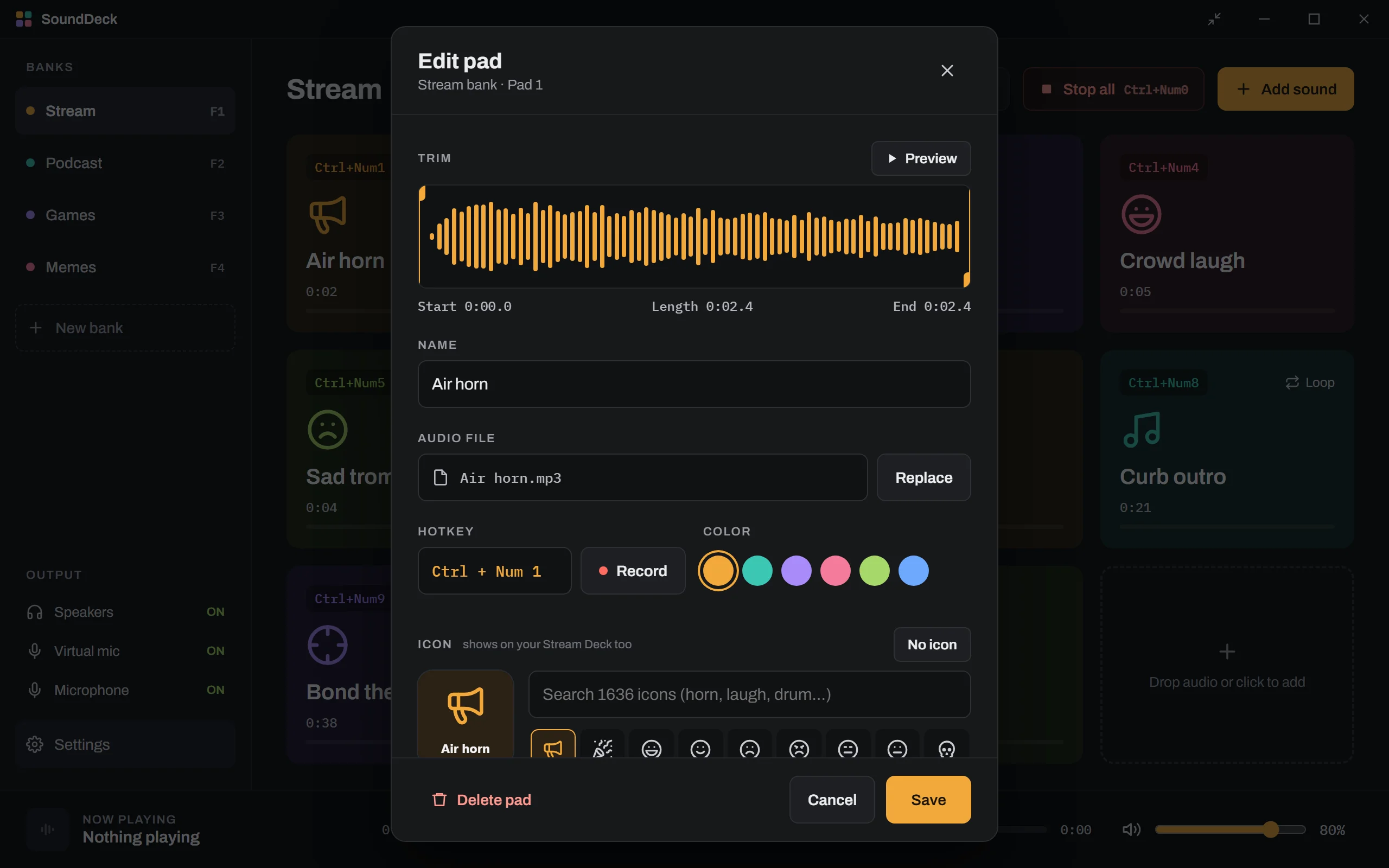
Sounds live on pads, pads live in banks. Click a pad, press its hotkey, or hit its Stream Deck key.
Drag in your sounds
MP3, WAV, OGG, FLAC or M4A. Drop files on the window, or drop them on a bank in the sidebar to put them straight there. Drag pads to reorder.
Hotkeys that work in games
Pad hotkeys fire while you're in another app or a full-screen game. Ctrl+Num0 stops everything, and there's a hotkey for your mic too.
Mini player
The arrows button in the title bar shrinks SoundDeck to a small always-on-top grid of pads that sits beside your game or call.
Every sound, equally loud
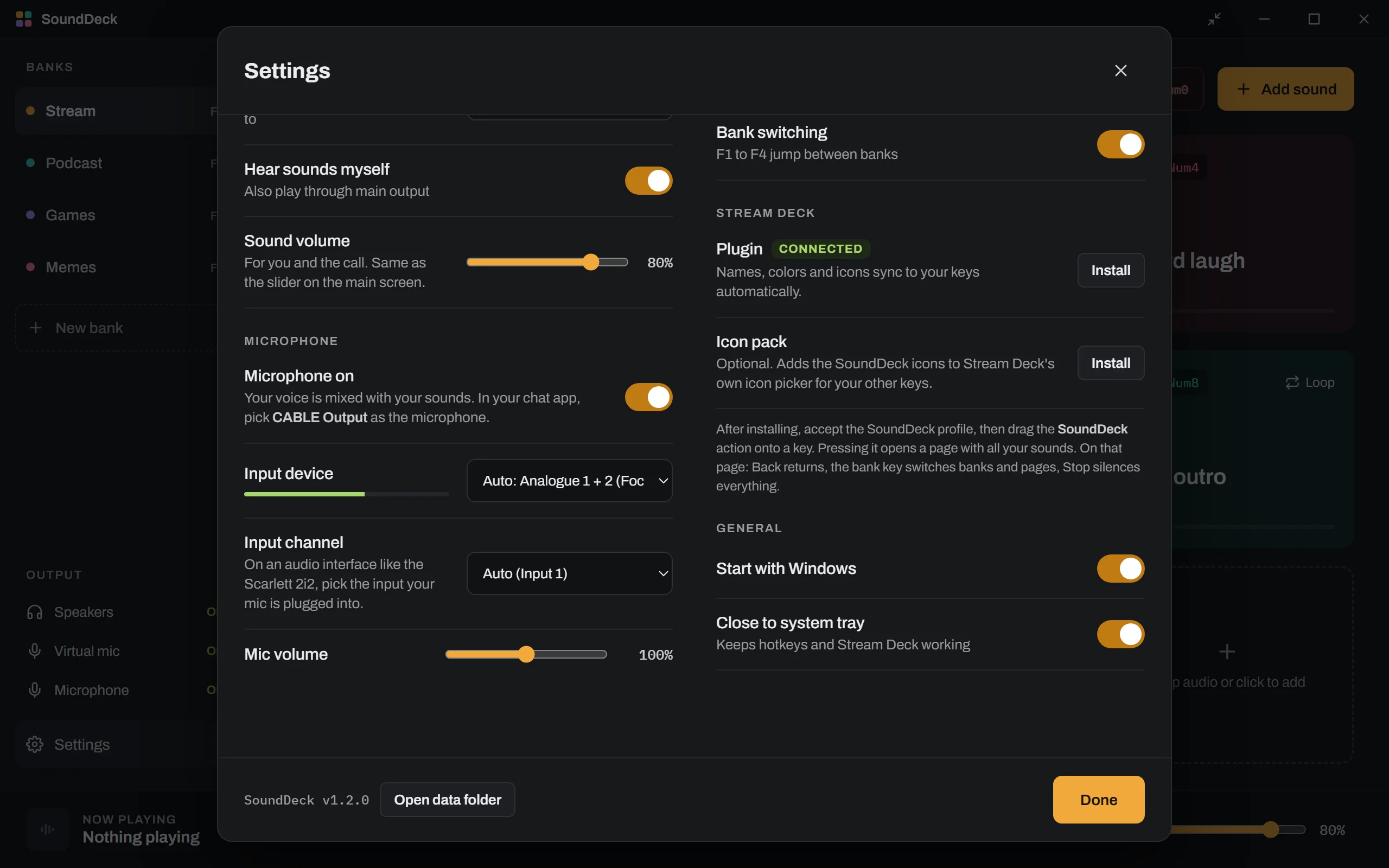
One button in Settings measures every sound and evens them out, so a quiet clip and a blaring air horn land at the same level. New sounds get the same treatment as you add them, and pad volume still works on top.
Press again to stop
Hit a playing pad — by click, hotkey or Stream Deck key — and it stops. One slider at the bottom right sets how loud sounds are, for you and the call alike.
Lives in the tray
Closing the window keeps it running in the system tray, so hotkeys and the Stream Deck keep working. Right-click the tray icon to quit.
Stream Deck, working out of the box
No setting up keys one by one. Install the plugin, press one key, and your whole soundboard is on the deck — and it stays in sync as you change things in the app.
-
Install it from inside SoundDeck
With the Stream Deck app running, open SoundDeck's Settings and, under Stream Deck, click Install next to Plugin. The Stream Deck app asks to install it and to add the SoundDeck profile — accept both. There's nothing to download separately; the plugin ships inside SoundDeck.
-
Drag one key onto your deck
In the Stream Deck app, find SoundDeck in the action list on the right and drag the SoundDeck logo action onto any key on your normal page.
-
Press it
The deck switches to a page of all your sounds, in the order they are in the app. Change a pad's name, color or icon in SoundDeck and its key updates immediately — no re-dragging, no re-saving. Settings shows CONNECTED once the plugin is talking to the app.
Every key the plugin adds
| SoundDeck | The one to start with. Opens the page of all your sounds. Profiles are included for the Stream Deck (15 key, MK.2), Mini, XL and Plus, so the page is laid out for your model. |
|---|---|
| Bank / page | Shows the current bank's name in its color. Press it for the next page of sounds if a bank has more sounds than keys, then the next bank. |
| Stop all | Silences everything, with a short fade. |
| Back | Returns to whatever Stream Deck profile you were on. |
| Play sound | For your normal pages: put one specific sound on any key. Press again to stop it. Works in Multi Actions too. |
| Mic on/off | Turns your voice on or off in calls. Sounds keep playing into the call while your mic is off. |
| Sound slot (auto) | For a Stream Deck model without a ready-made profile, or a page you lay out yourself: make a folder and fill it with slots. They fill with your sounds in order, left to right, top to bottom. |
Press again to stop
Pressing a key whose sound is playing stops it. A pad set to Hold plays only while its key is held down — handy for a drumroll you want to cut off exactly.
The optional icon pack
A second Install button adds all of SoundDeck's icons to Stream Deck's own icon picker, so your other keys can match.
Stays on your machine
The plugin talks to the app over your own computer only (a local port, nothing on the network). SoundDeck needs to be running, which it is from the tray.
Needs the Stream Deck app 6.0 or newer. A Stream Deck is optional: everything else in SoundDeck works without one.
Setting up VB-CABLE
A one-time job, about five minutes including the restart. You only need it for playing sounds into calls — SoundDeck plays through your own speakers without it.
Why it needs a driver at all
Discord, Zoom and the rest will only take a real audio device as their microphone. VB-CABLE is a free
driver that adds a pretend one: a virtual cable with an input end and an output end. SoundDeck plays your voice
plus your sounds into one end, CABLE Input, and your chat app listens to the other end,
CABLE Output, as if it were a microphone. It's the same approach Voicemod and other soundboards use.
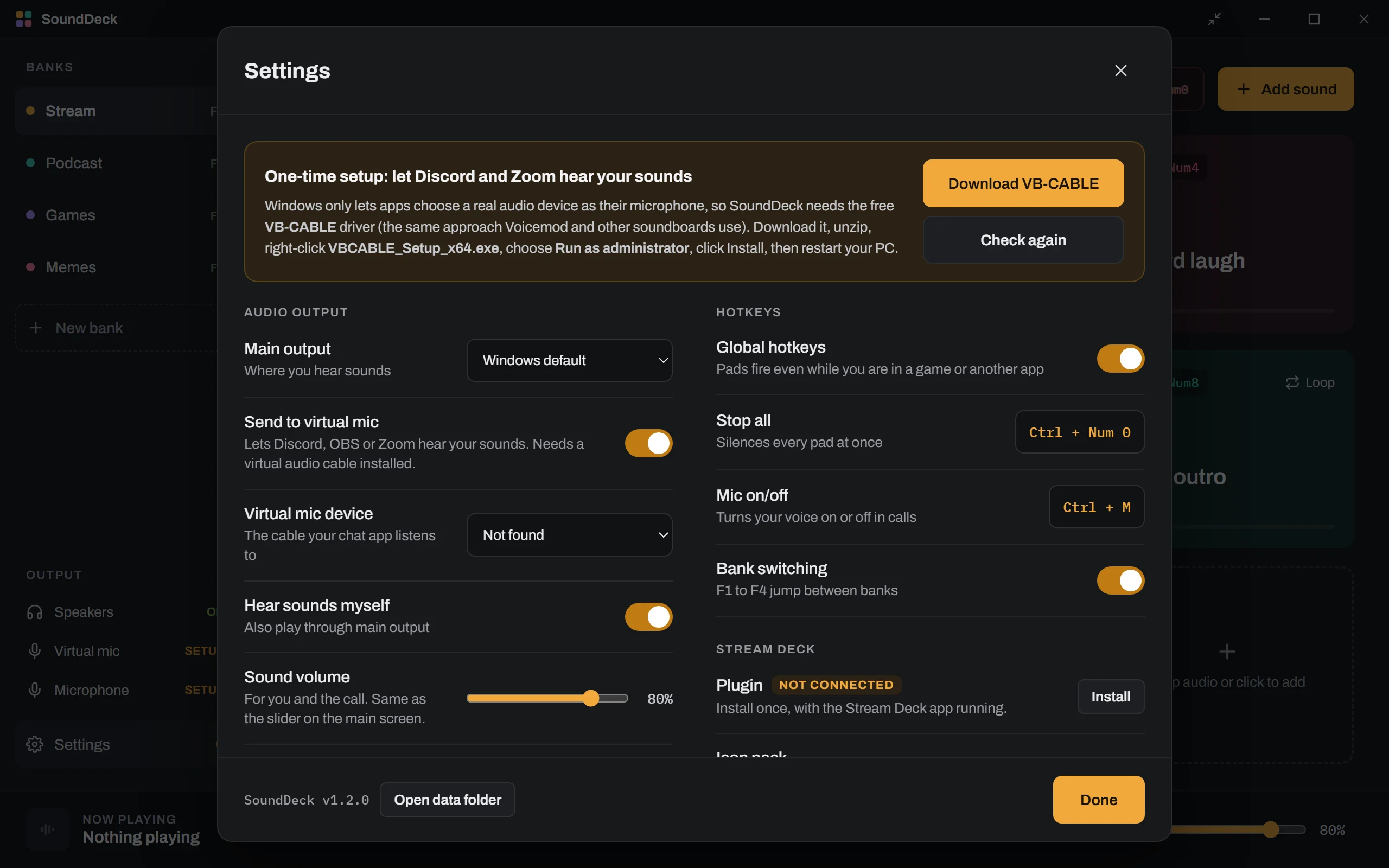
-
Download it
Click Download VB-CABLE on that card, or go to vb-audio.com/Cable and download the Windows driver pack. It's a zip file, and it's free (the site asks for a donation, which is optional).
-
Unzip it first
In your Downloads folder, right-click the zip and choose Extract All…, then Extract. Running the installer from inside the zip without extracting is the most common reason it fails.
-
Run the installer as administrator
In the extracted folder, right-click
VBCABLE_Setup_x64.exeand choose Run as administrator. Say Yes to Windows' prompt, then click Install Driver. If Windows asks whether to trust the software from VB-Audio, click Install. -
Restart your PC
The new audio device doesn't fully appear until you do. Don't skip this one.
-
Open SoundDeck
It finds the cable by itself: the setup card disappears and the sidebar shows Virtual mic and Microphone as ON. If it doesn't, open Settings and click Check again.
Then check Settings → Microphone → Input device is your real mic. On an audio interface like a Scarlett 2i2, also set Input channel to the input your mic is plugged into (Input 1 or Input 2), so your voice is full volume and centered. The little green meter under Input device moves when you talk.
-
Point your chat app at the cable
In whichever app you're using, set the microphone / input device to CABLE Output (VB-Audio Virtual Cable). Leave its speaker / output setting alone.
DiscordUser Settings → Voice & Video → Input DeviceZoomSettings → Audio → MicrophoneTeamsSettings → Devices → MicrophoneOBSSettings → Audio → Mic/Auxiliary Audio, or add an Audio Input Capture source -
Test it
Discord's Let's Check button on the Voice & Video page plays your mic back to you. Talk, then press a pad — you should hear both. In Discord, also turn off Noise Suppression and Echo Cancellation on that page, or Discord may filter your sounds out as background noise.
Leave your Windows sound settings alone
You'll now see CABLE Input in the list of speakers and CABLE Output in the list of
microphones. Don't make either one your Windows default — if CABLE Input becomes your default
speakers, you'll stop hearing your PC. Only the chat app should use the cable; SoundDeck handles the rest.
Your mic, switched off, still plays sounds
The Microphone switch in the sidebar (or its hotkey, or the Stream Deck key) mutes your voice in the call, but pads keep playing into it. Mute in Discord itself if you want total silence.
If something's off
| The call can't hear my sounds | Check the chat app's microphone is CABLE Output (not CABLE Input, and not your real mic), and that Virtual mic in SoundDeck's sidebar says ON. Then turn off Discord's Noise Suppression. |
|---|---|
| The call can't hear my voice | Check Microphone in the sidebar is ON, and that Settings → Input device is your real mic. On an audio interface, try the other Input channel. |
| I can't hear the sounds myself | Turn on Hear sounds myself in Settings, and pick your headphones or speakers under Main output. |
| My voice crackles | SoundDeck steps up from Lowest to Balanced latency on its own when it hears this. If it keeps happening, choose Safe in Settings → Latency. |
| My voice is slightly delayed | Open the VB-CABLE Control Panel (in the extracted folder) and lower Max Latency, for example to 2048 or 1024 samples. If it crackles after that, go back up one step. |
| SoundDeck still says SETUP | You probably haven't restarted since installing VB-CABLE. Restart, then Settings → Check again. |
| Removing VB-CABLE | Run VBCABLE_Setup_x64.exe as administrator again and click
Remove Driver, then restart. |
Installing SoundDeck
Windows will warn you on first run
The installer isn't code-signed — a certificate costs a few hundred dollars a year, which is hard to justify for
something shared with friends. Click More info, then Run anyway. You'll only see it once.
It installs under your own account, so there's no admin password, and it uninstalls from Settings → Apps.
Your sounds and settings are kept in
%LOCALAPPDATA%\LutzStack\SoundDeck (Settings → Open data folder). If you report a problem,
the version number is at the bottom left of Settings.